This tutorial will cover different ways to share exercises, receive those shared exercises, and toggle settings relevant to these options.
¶ Importing an Exercise
It is possible to search for and import exercises by their Exercise ID.
By default, courses do not allow exercise imports, and exercises in these courses will not appear when searching for exercises to import.
To allow or disallow exercise imports in your course. Navigate to the Select Class tab in the dashboard, select the class whose settings you want to change, and then click Class Settings to go to the Course Settings page.
In the Course Settings section, look at the Allow Exercise Imports setting.
If you want professors to be able to search for and copy the exercises in your course, check this setting, and then save.
If you do not want professors to be able to search for and copy the exercises in your course, uncheck this setting, and then save.
¶ Sharing an Exercise
Sharing Exercises can be done when allowing exercise imports is enabled and when it is disabled.
To share an exercise, navigate to the Homework & Quizzes tab or the In Class Exercises tab
Click on the Actions menu for the exercise you wish to share, and then click the Share option

This button will open an alert, prompting you to enter the email of the professor you are sharing the exercise with. Enter that professor's email, and press OK.
¶ Receiving Shared Exercises
If an exercise has been shared with you, then you will have a notification in the top right of your Dashboard. Click the notification menu, and then the notification that an exercise has been shared with you.
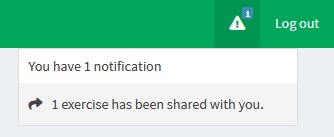
Clicking the notification will open a modal that will give a summary of all of the exercises that have been shared with you in collapsible boxes. In this example, there is only one example that has been shared.
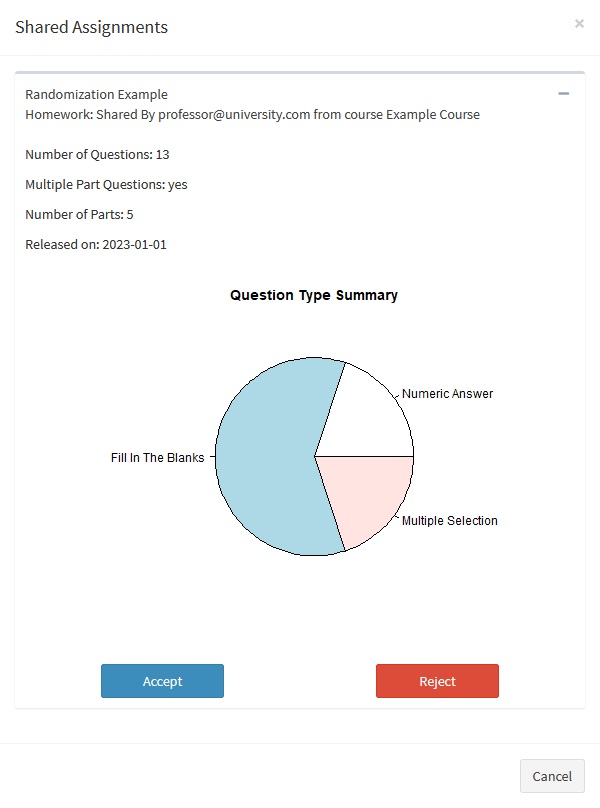
The exercise being shared is the exercise created in the Randomizing Exercises tutorial. This exercise has a Question Pool that is sampling a single Numeric Answer Question 10 times, a Fill In The Blanks Question, a Multipart Question with two Fill in the Blanks parts, and one Multiple Selection Question.
Press either the Accept button or the Reject button, depending on whether you want to accept the exercise that has been shared with you.
If you accept the exercise, you will be asked for the course you will add the exercise to, the type of exercise you want it to be, and the name you want to give the exercise. After filling in the necessary information, EduRITA will copy the exercise to your course.