See the Fill In The Blanks Questions section of the Randomizing Exercises tutorial for more examples of this question type.
¶ Navigating to the page
- From the Dashboard, go to either the Homework & Quizzes tab or the In Class Exercises tab
- Create a new Exercise or edit an existing exercise
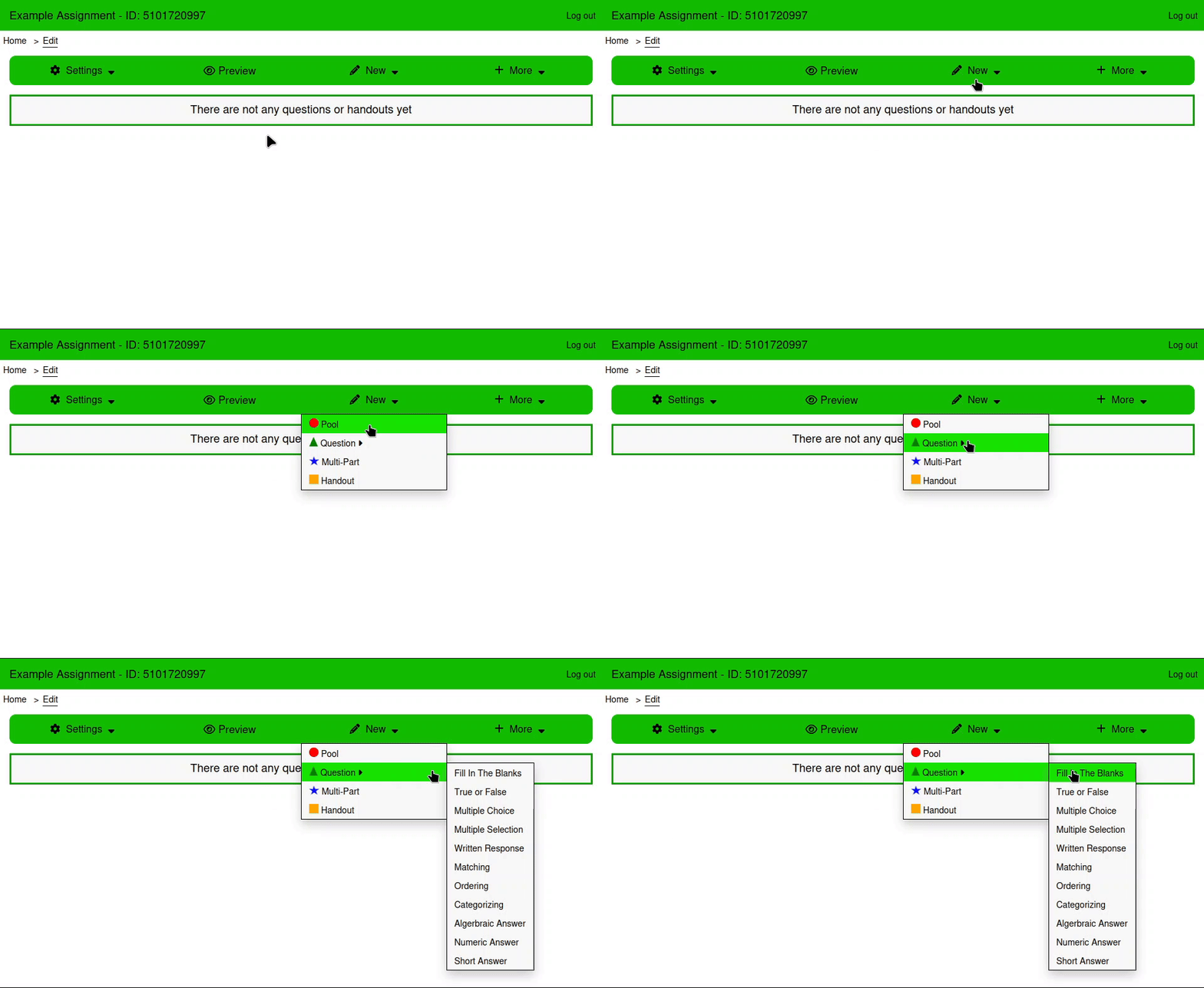
- From the Edit page, Click New → Question → Fill In The Blanks
¶ Using the page
¶ Inputs
Answers in Fill In The Blanks questions are Inputs. They are the blanks that students will fill in when answering the question.
The following actions can be taken on each Input:
¶ Remove
Removes the selected Input
¶ Settings
There are three types of Inputs, and each have their own settings.
¶ Add to Question
Inserts the selected input into the question input using the appropriate syntax.
Similar to parameterization, inputs can be added to a question by typing their names surrounded by the @ character and curly braces.
¶ Input Types
There are 3 input types: Text, Number, and Select. Each input can be given Default or Underline style in the input settings.
¶ Text Inputs
Text inputs treat answers as strings, and have the following settings:
¶ Case Sensitive
If this is checked, then capitalization will be important while evaluating the answer. If not, then the answer will be converted to lower case before evaluation.
¶ Verification Type
There are three types of verification for marking short answer questions:
- Exact Match: The answer will be compared to a single correct answer for equivalence
- List Match: The answer will be compared to a list of correct answers, to see if it is equal to one or more of them.
- Pattern Match: The answer will be evaluated using a Regular Expression.
¶ Bonus
If this is checked, then this input is a bonus question, and isn't needed to get full marks on the question.
¶ Number Inputs
Number inputs treat answers as numbers, and have the following settings:
¶ Enforce Precision
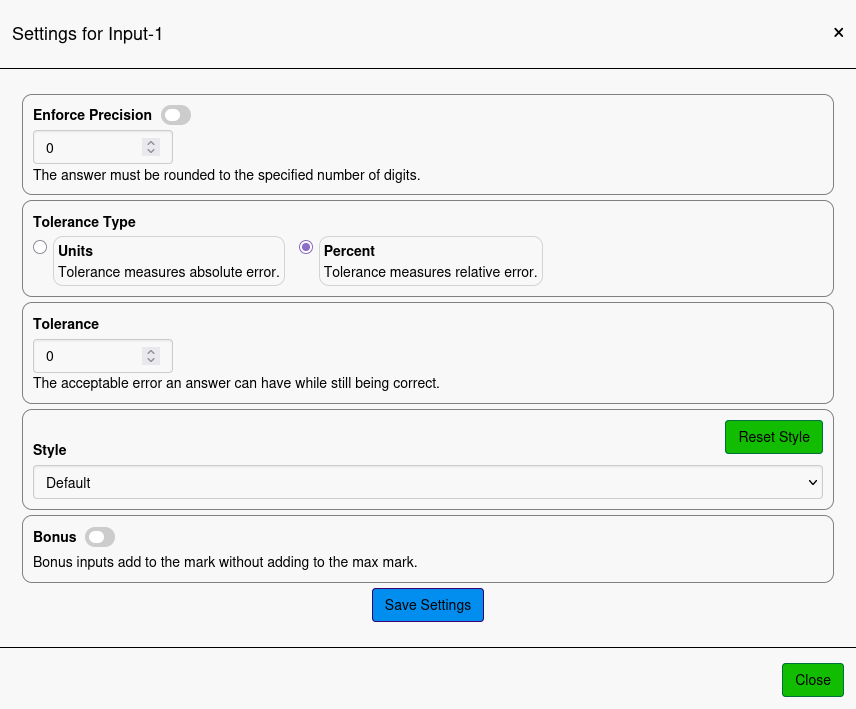
Should the answer be incorrect if it isn't rounded to the correct number of digits?
¶ Tolerance Type +/-
Tolerance is the acceptable error an answer can have while still being correct. The tolerance type can be units or percent.
¶ Units
If the answer to the question includes units, then they can be included using the Name, Worth (%) and Evaluation Options inputs.
¶ Treat As Formula
If this is true, then the Value column for this Input will be treated as a formula, and evaluate as if it were R code. If this is false, then the Value column will be treated as a string, and will substitute parameters the same way as the question input.
¶ Bonus
If this is checked, then this input is a bonus question, and isn't needed to get full marks on the question.
¶ Select Inputs
Select Inputs have multiple answers that are all displayed as options in a Select tag. The order of the options will be randomized if the Randomize Answers setting is enabled on the Assignment Settings page.
¶ Examples
¶ Multiplication Table
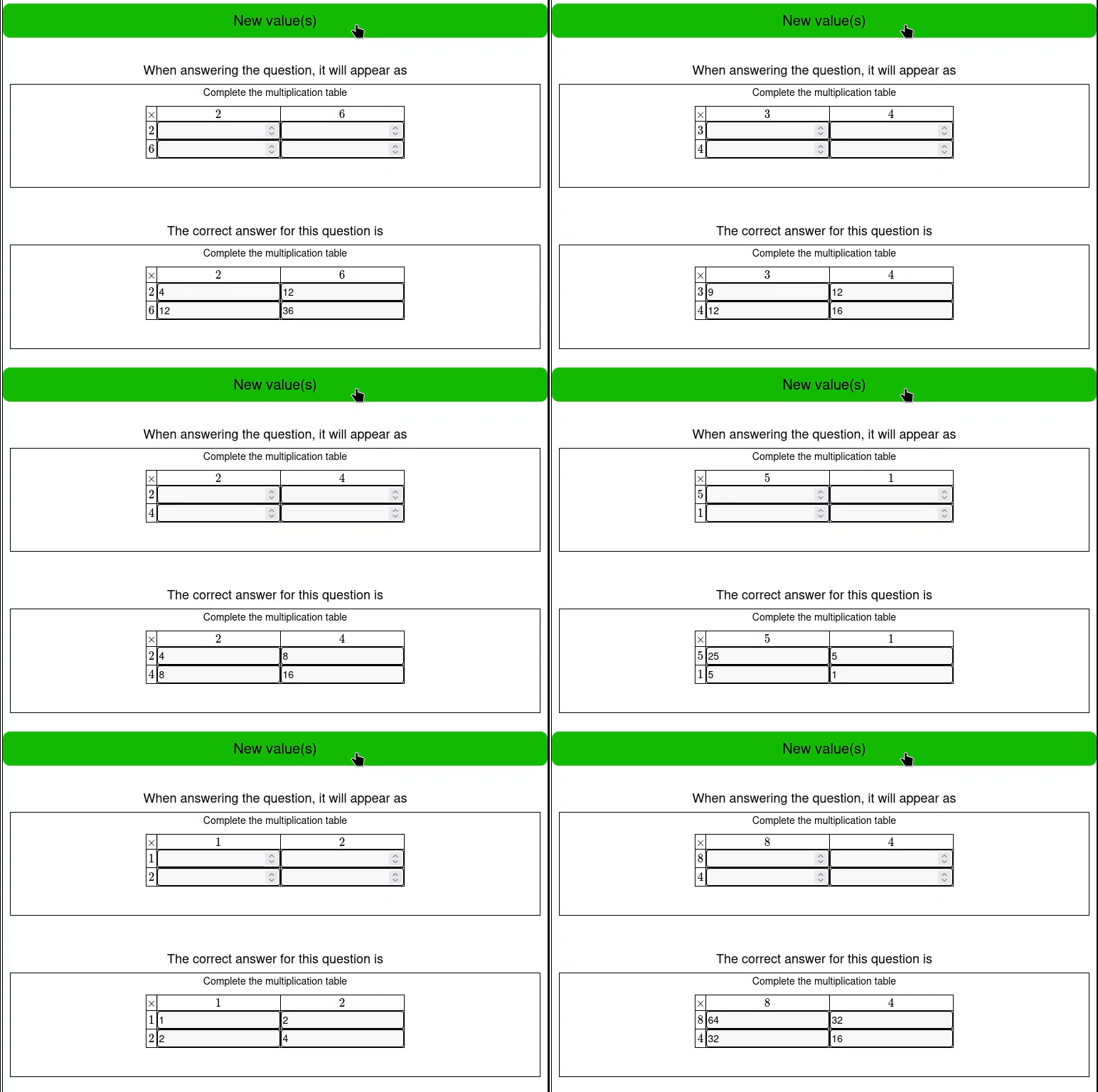
This example asks the student to fill out a multiplication table with 2 random numbers
It uses 2 variables for the random variables, 3 inputs, and 3 formulas.
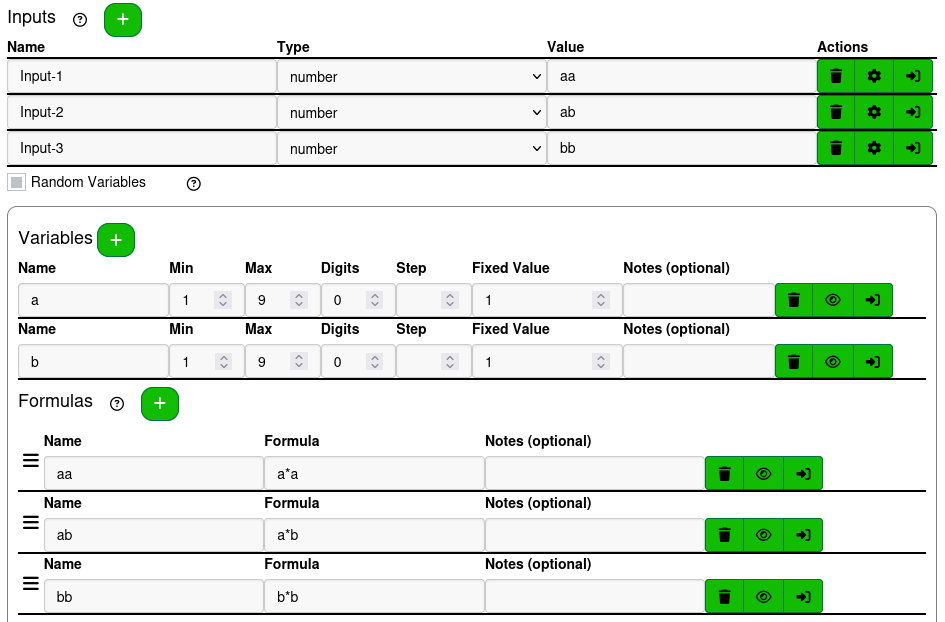
All of the inputs for this example are numbers with the same settings
Inputs can be inserted using the substitution syntax @{…}, they can also be inserted using the Add to Question button on the inputs table.
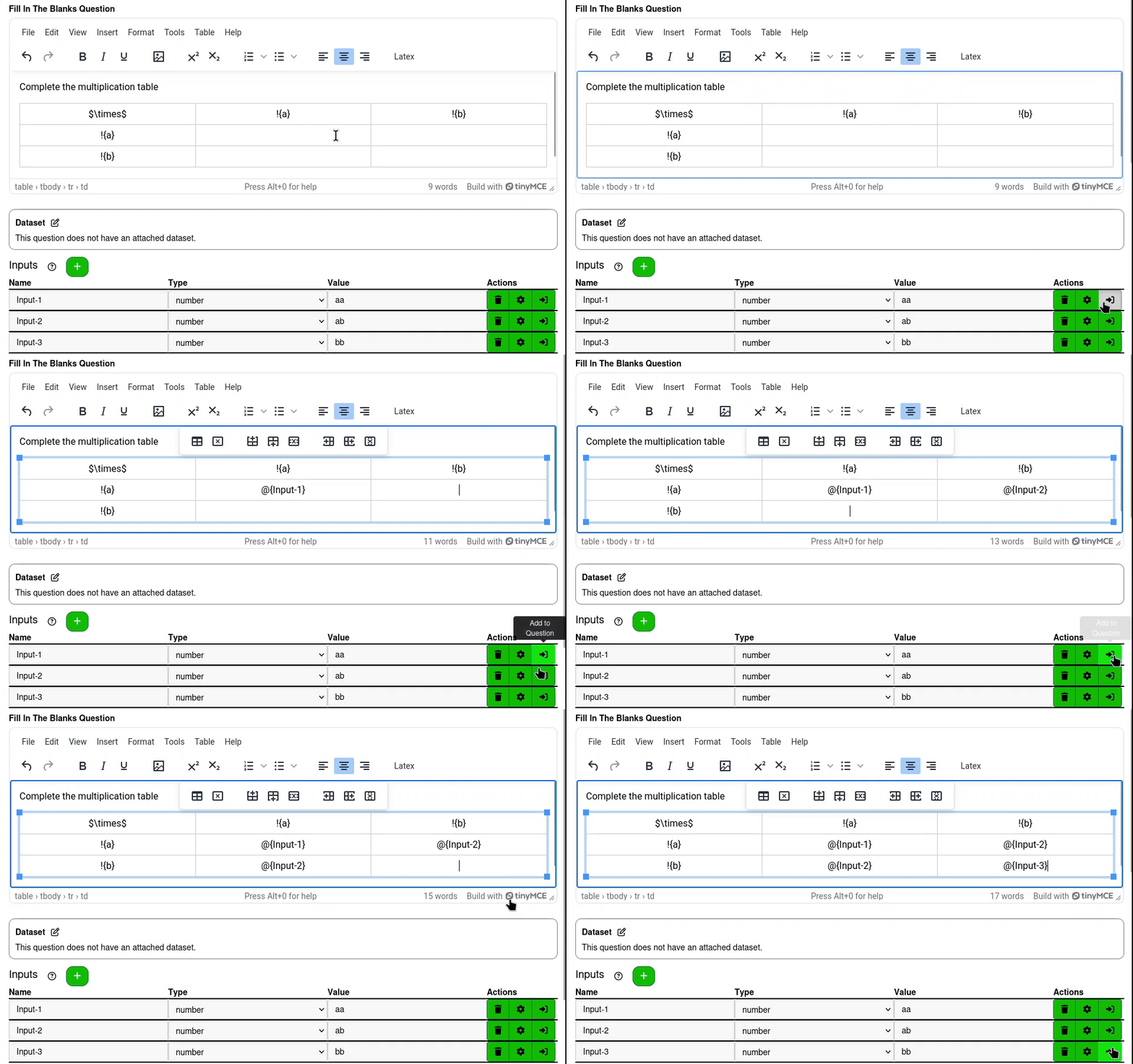
The table includes 4 inputs for the student to fill in, but since it is symmetric, Input-2 can be re-used and inserted multiple times. When marking, both instances of the input are treated as unique, and equally contribute to the overall mark of the question.
By default, tables in the TinyMCE editor are set to take up the full width of the question text. For this example, the question will not look as nice on wide screens. This can be changed in the Table menu.
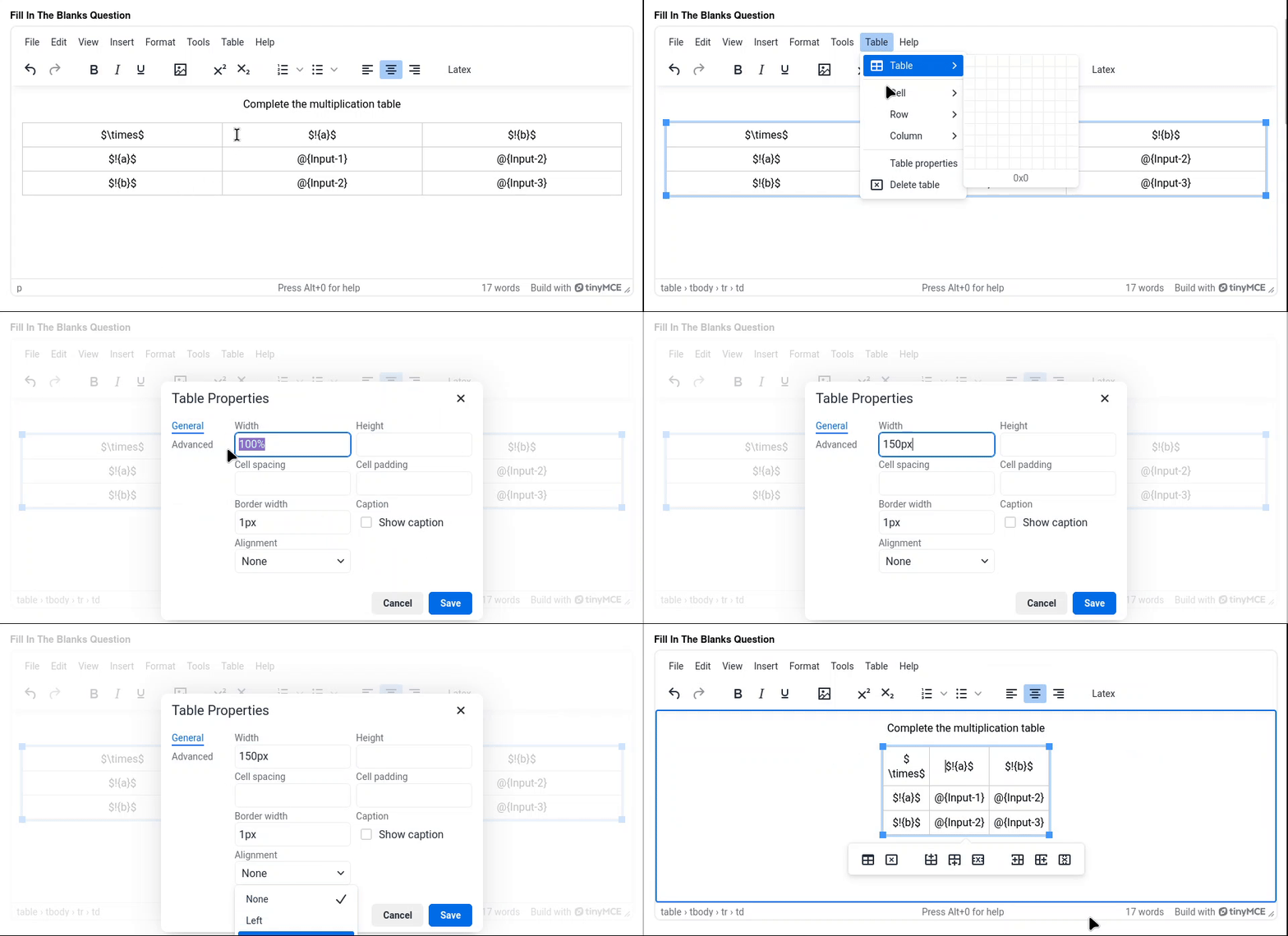
With the new width as narrow as it is assigned in the image above, it will be stretched to fit the inputs that get inserted into the first and second columns.
¶ Text and Select Inputs
This example embeds two different types of inputs into the question text.
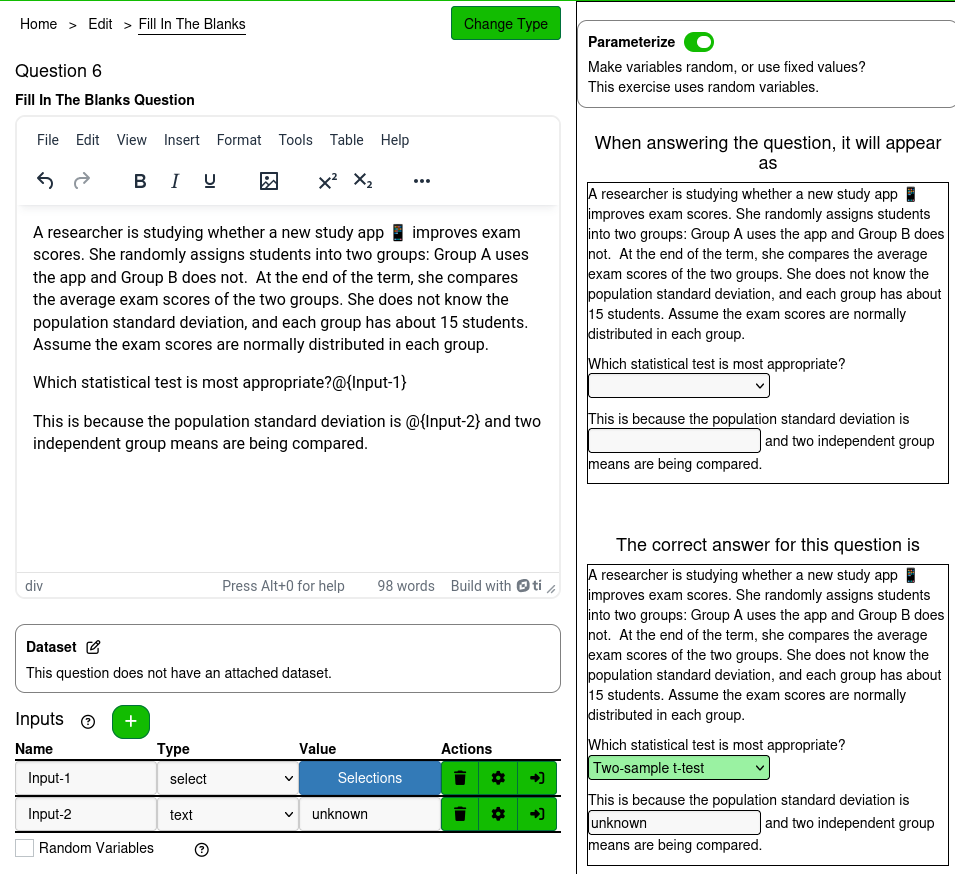
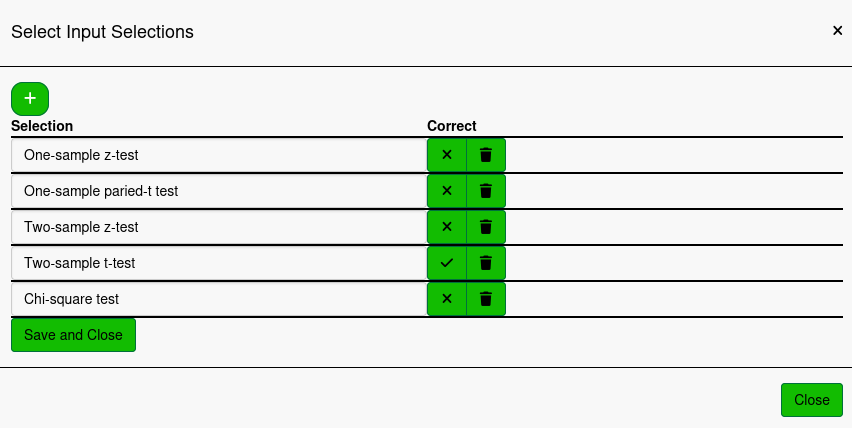
The select input has the following options
And the text input has the following settings
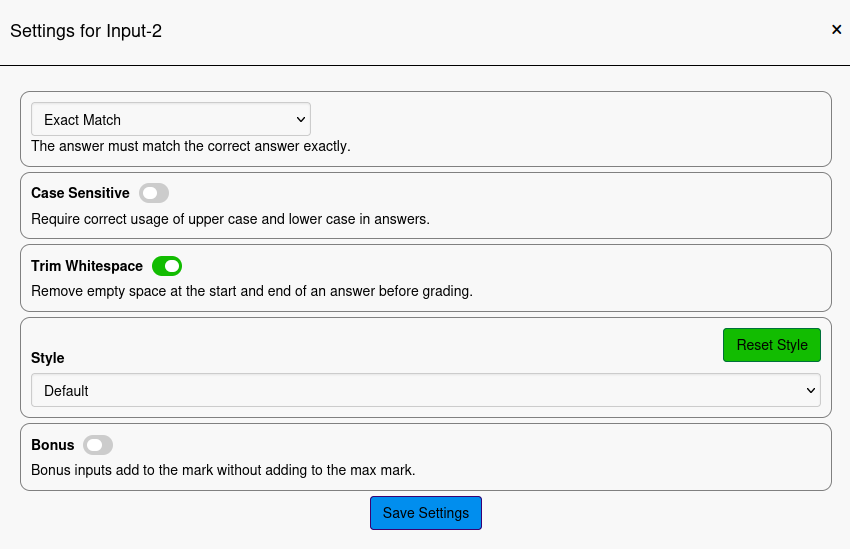
The input is not case sensitive, and trims the white space before grading.