¶ Creating an Account
- Go to edurita.com
- Click “Not a member? Register!”
- Enter your email and continue
- Enter your password into the password and verify password fields, then click Register. If you are a professor who wants to use this application for your classes, please email info@edurita.com after registration and we will get back to you within 24 hours.
¶ Getting Started as a Student
¶ Joining a Course
Once you log in, your professors may have already enrolled you in their courses.
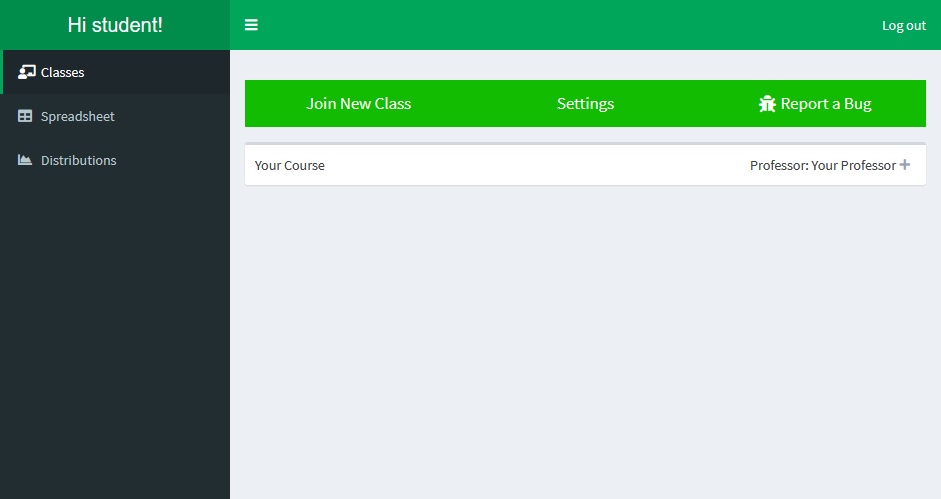
If you have not been enrolled in a course, you can do so by clicking the “Join New Class” button above your course list. Clicking the button will open an alert where you can enter a Course ID given to you by your professor. After joining the course, it will be visible in the course list.
¶ Starting an Exercise
The courses in the course list are collapsible boxes. Click the plus icon on the left to open them.
In Class Exercises can be accessed by clicking the "In Class Exercise" button when the professor has activated an exercise.
Assignments and Quizzes can be accessed by opening their respective collapsible boxes and clicking the “Start” button.

¶ Getting Started as a Professor
¶ Creating a Course
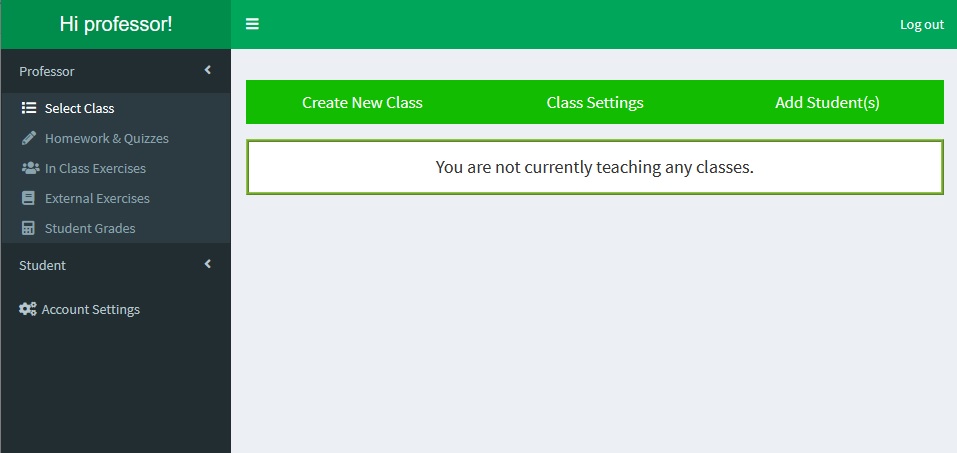
When you first log in to your account, the first thing to do is create your first course. You can do so in the “Select Class” tab by clicking the “Create New Class" button.
The button will open a modal where you can fill in some details about the course and upload a course list from a .csv file. The columns “first_name”, “last_name”, “pref_name”, and “email” will be read from the .csv file, case insensitive. After creating a course, you are also able to add students by using the “Add Student(s)” above the class list.
¶ Creating Exercises
After you have created a course, you are able to create Exercises for your students.
In the “Homework & Quizzes” tab, press the “Create a New Assignment/Quiz” button.
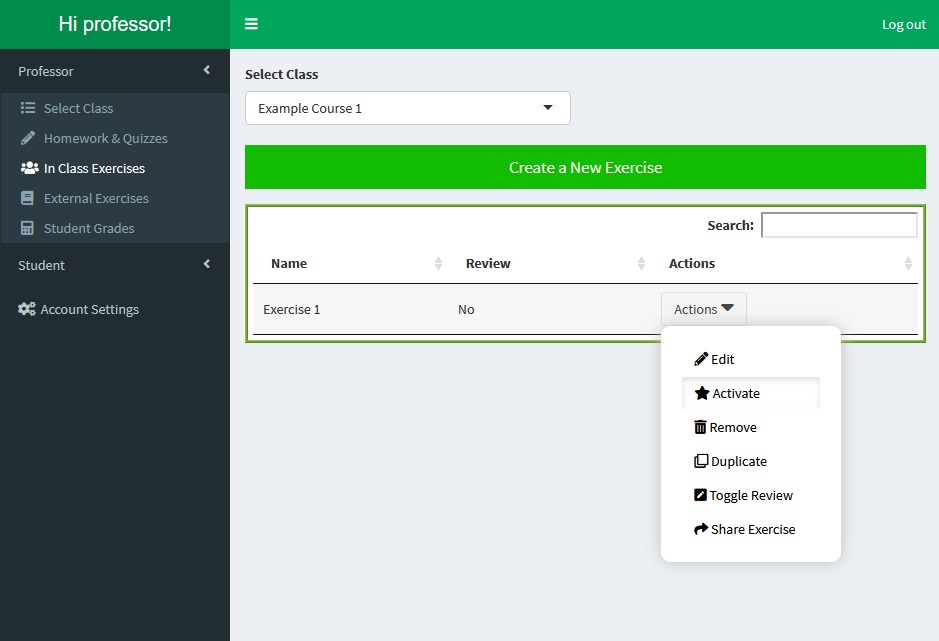
In the “In Class Exercises” tab, press the “Create a New Exercise” button.
Creating a new exercise will bring you to the Edit page, where you can add Questions by writing new ones, uploading images as questions, and adding questions from our Question Repository

¶ Activating an In Class Exercise
In Class Exercises can be activated in multiple ways.
- Use the “Activate Exercise” button in the Edit page
- Use the “Activate Question” button in the Questions table on the Edit page
- Use the “Activate” Button in the Actions drop down menu in the In Class Exercises tab of the Dashboard page.
Each of these buttons have a Star icon. If you activate an exercise using methods 1 or 3, you will then need to select a question to activate. Once a Question is selected, you will be brought to the ProfExercise page, where you will be able to display the question to your students. Your students will be able answer the question you've activated by logging in and clicking the “In Class Exercise” button