Questions are the building blocks of Exercises. They can be copied from a repository, or written using the question writing pages.
¶ Common Question Writing Elements
¶ Preview
Clicking this button in the top right of the page will open a preview, showing what the question will look like in an exercise, what the correct answer will look like, as well as displaying the hint and solution if they have been written
¶ New value(s)
This button changes the seed used for random number generation, generating different values in the preview if it uses randomization.
¶ TinyMCE Editors
Each question writing page has three TinyMCE text editors
¶ Question
The content of this editor will be placed before the input the student will use to answer the question. It cannot be empty when saving a question.
¶ Hint
The content of this editor can be displayed when the student is answering a question to help them find the correct answer. It is not needed to save a question.
¶ Solution
The content of this editor is for the solution to the question being written, for students to use when studying after the deadline of the exercise has passed.
¶ Include Dataset
This button opens a modal for professors to upload a data set to attach to the question. This data set will be visible to students in the Spreadsheet, and the name of the data set can be used in Formulas.
Datasets are attached to Questions, and will be the same for every part in the question.
¶ Variables
All question types support Randomization. The Variables table is used to create random variables and define their qualities.

¶ Name
The name of the variable is used to refer to it when writing the question. In text editors, the variable can be called by typing an exclamation mark followed by its name surrounded by curly brackets. For example, the variable in Fig. 1 will be written as !{Variable_1} in the Question editor.
¶ Min
The minimum value the variable can take.
¶ Max
The maximum value the variable can take.
¶ Digits
The number of digits the variable will be rounded to. Setting Digits to 0 will round to the nearest integer. Setting Digits to 1 will round to the nearest tenth. Setting Digits to -1 will round to the nearest 10.
¶ Step
The possible values of the random variable are a sequence from the Min value to the Max value. This value decides what the step of that sequence is. If it is not included, the step is assumed to be the smallest value that will produce a unique value after rounding.
¶ Fixed Value
The value the variable will take when randomization is disabled.
¶ Actions
¶ Remove
Deletes the variable
¶ Preview
Displays 10 possible values the variable can take
¶ Add to Question
Automatically adds the variable to the Question editor at the location of the cursor using the correct syntax
¶ Formulas
The formulas tables is used to create calculated values. The values are calculated using the R programming language, and can calculate values based off of Variables and Data sets.
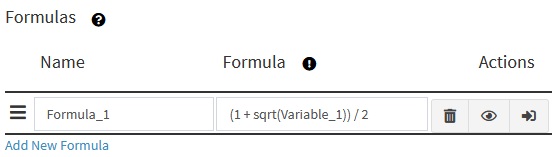
¶ Name
The name of the variable is used to refer to it when writing the question. In text editors, the variable can be called by typing an exclamation mark followed by its name surrounded by curly brackets. For example, the variable in Fig. 2 will be written as !{Formula_1} in the Question editor.
¶ Formula
The R code used to calculate the formula. The exclamation mark and curly braces cannot be included when using variable names in formulas, as can be seen in Fig. 2. Click the Exclamation mark button next to the Formula column header to see documentation on each of the functions that can be used when writing formulas
¶ Actions
¶ Remove
Deletes the formula
¶ Preview
Tests the formula in the previous column. If there are any errors they will be displayed in an alert. If there are not any, then a sample output of the formula will be displayed.
¶ Add to Question
Automatically adds the formula to the Question editor at the location of the cursor using the correct syntax