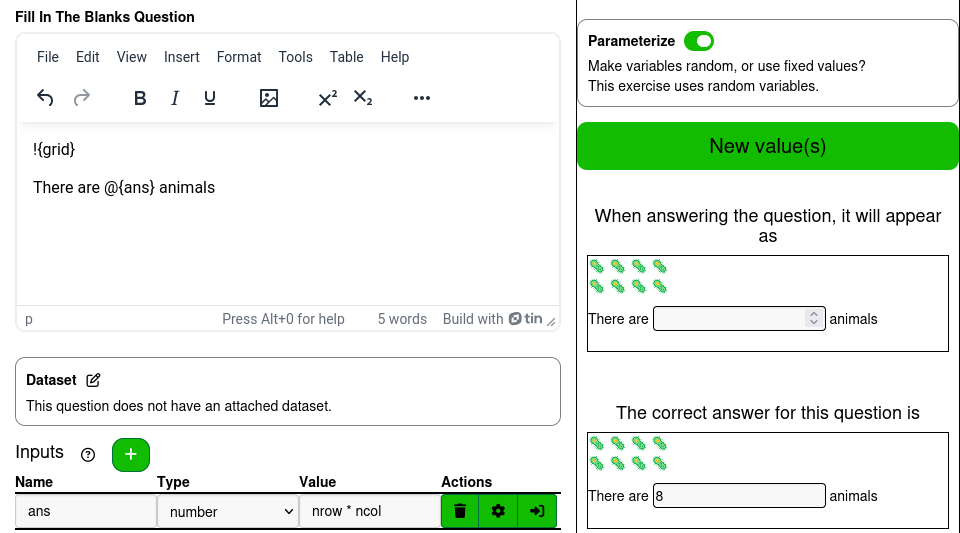
Emojis can be placed in the question text, answer text and be used in formulas.
¶ Emoji Functions
The emoji package is included in the environment used to calculate formulas. The following functions are included from the emoji package
- arrow
- clock
- day_in_synodic_cycle
- emoji
- emoji_count
- emoji_detect
- emoji_extract
- emoji_extract_all
- emoji_find
- emoji_fix
- emoji_glue
- emoji_keyword
- emoji_locate
- emoji_locate_all
- emoji_match
- emoji_match_all
- emoji_modifier_extract
- emoji_modifier_remove
- emoji_modifiers
- emoji_name
- emoji_p
- emoji_replace
- emoji_replace_all
- emoji_replace_name
- emoji_rx
- emoji_subset
- emoji_which
- emojis
- flag
- keycap
- medal
- moon
- shape
- zoo
The documentation for every function can be read by accessing the Documentation window described on the Formulas page.
¶ Viewing emojis in the R console
The emojis package provides a tibble called emojis. It has a row for every emoji included in the package with 19 columns of data for each emoji.
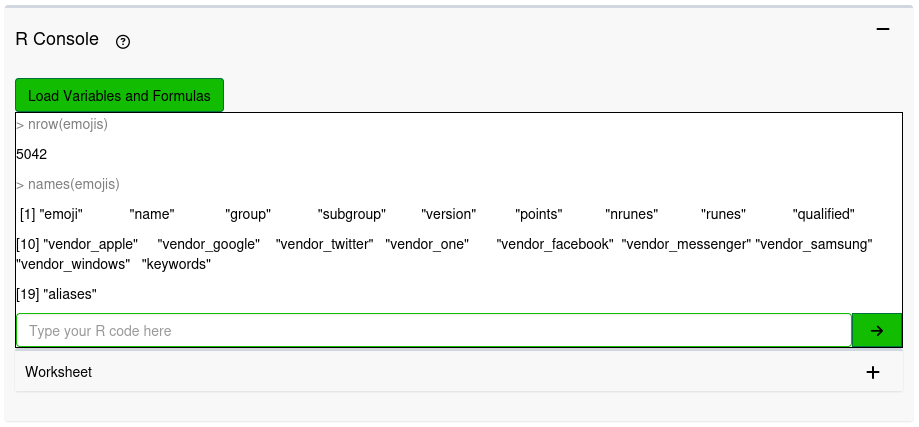
The R console can be very useful for exporing the dataset and deciding on different methods of selecting rows to subset the tibble by or sample rows from.
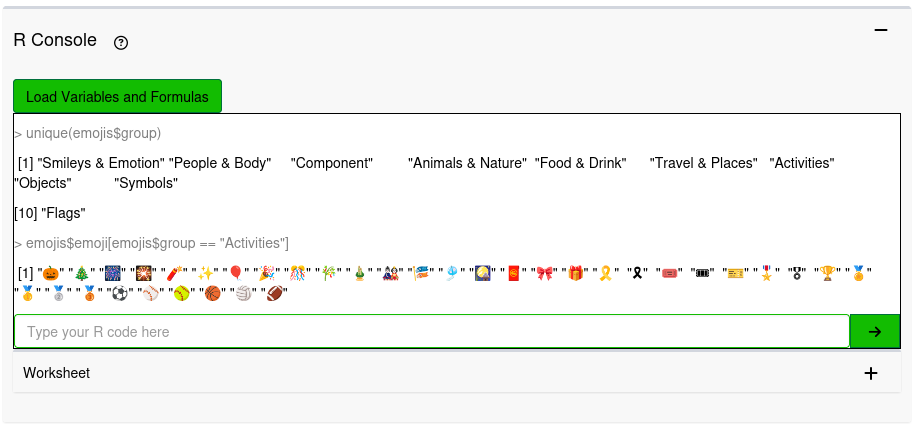
Columns of tibbles and data.frames can be isolated using the $ operator. In the above image emojis$group is used to isolate the group column. When isolated, the column can be treated as a vector. Logical comparisons like == are applied to every value of a vector. This can be used to subset vectors by using the [ function. It will return an object of the same type only containing the values where the comparison returns TRUE. A vector is 1 dimensional, so subsetting this way only requires the logical comparison. Subsetting a 2 dimensional object like a tibble or data.frame requires selection of the rows and columns separated by a comma.
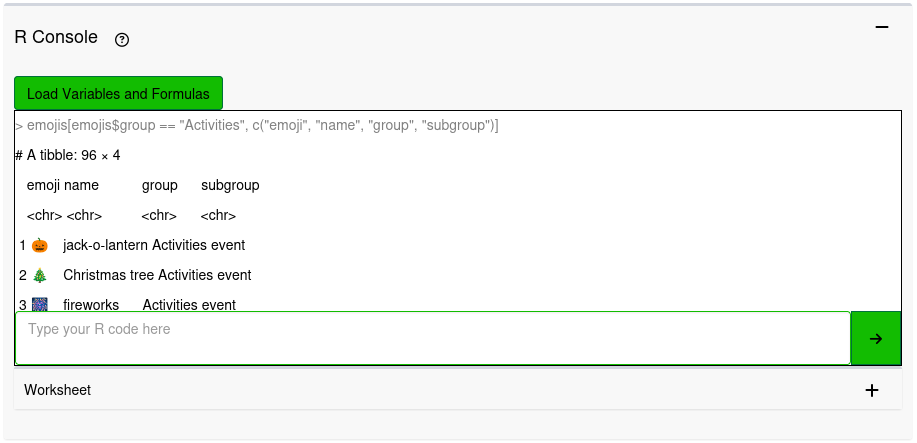
Leaving one of the values empty will select all of the values. emojis[emojis$group == "Activities", c("emoji", "name", "group", "subgroup")] will select only the “emoji”, “name”, “group”, and “subgroup” columns with the rows that match the comparison emojis$group == “Activities”, but emojis[emojis$group == "Activities",] will select every column with those rows.
¶ Examples
¶ Sorting emojis with a Categorizing question
The Categorizing question type asks students to sort answers into categories. Since emojis are organized into groups and subgroups, we can select emojis from subgroups to create answers that fit into a specific category. For this example, let's create a question that asks the students to categorize animal emojis by bird and by reptile.
Create a formula birds with the formula emojis$emoji[emojis$group == "Animals & Nature" & emojis$subgroup == "animal-bird"]. This will make a vector that contains all of the bird emojis.
Create a formula reptiles with the formula emojis$emoji[emojis$group == "Animals & Nature" & emojis$subgroup == "animal-reptile"]. This will make a vector that contains all of the reptile emojis.
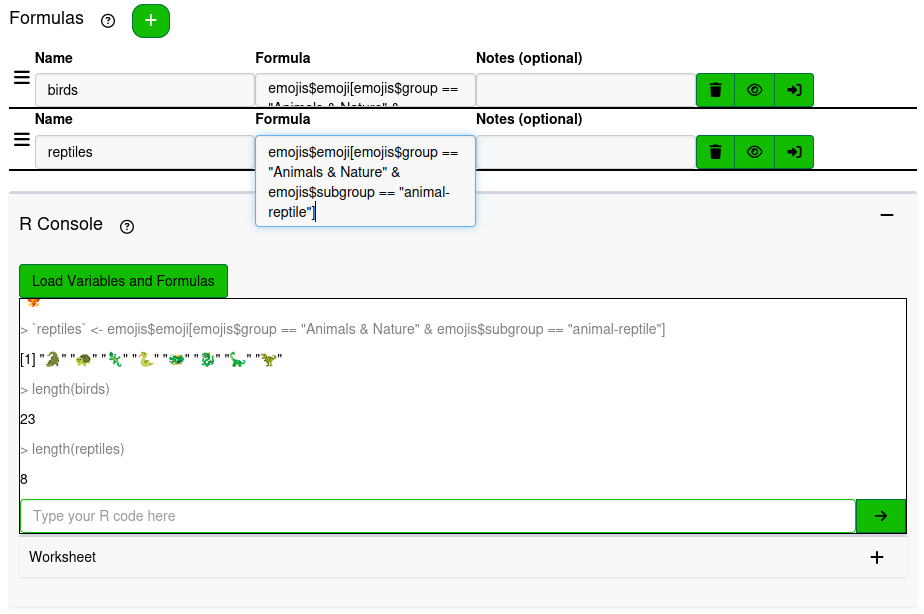
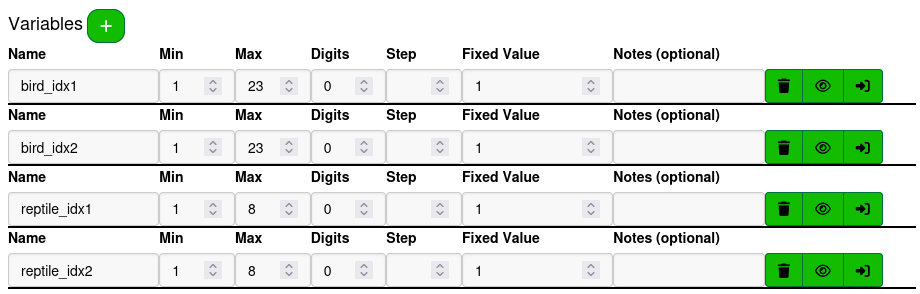
The length function can be used to see how many items are in a vector. This will be useful to know to set up the variables. Make 4 variables, 2 for each category, to be used to randomly select emojis for the category answers. These are going to be used as indices for the birds and reptiles vectors. Vectors cannot have indices outside of their ranges selected, so set the minimum value for each variable to 1, the maximum value for the bird variables to 23, and the maximum value for the reptile variables to 8.
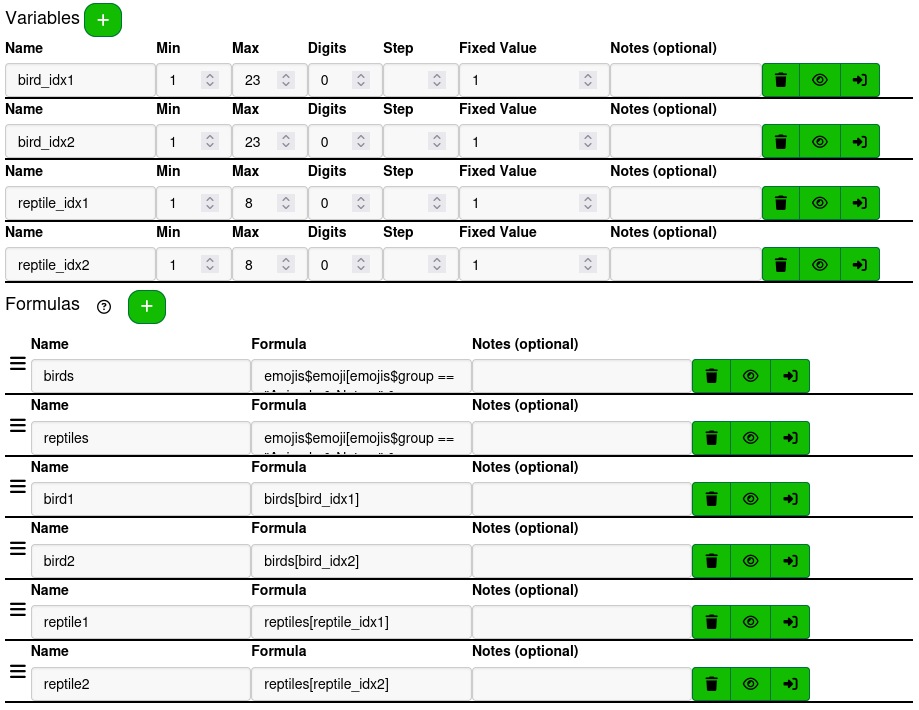
Make 4 new formulas, each one using the variables to subset their respective vectors. When a number is passed to [ to subset a vector, it selects the index corresponding to that number, starting at 1.
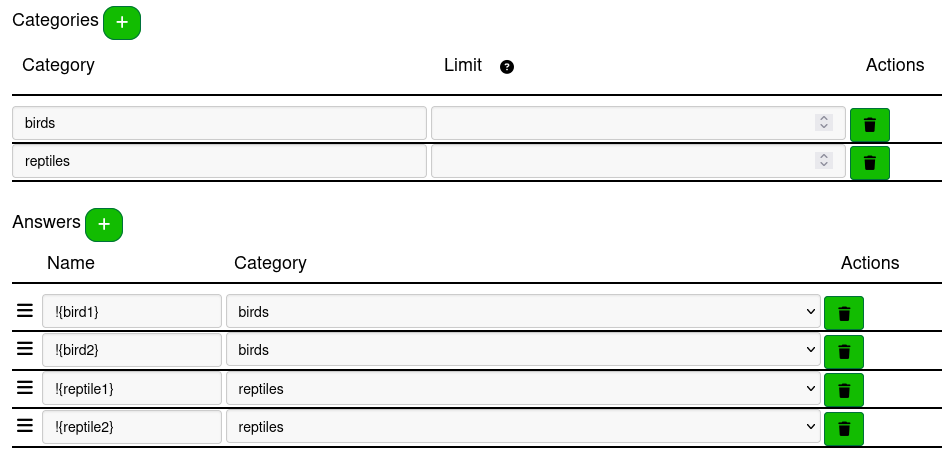
With the formulas set up to select random emojis from the birds and reptiles subcategories, create the categories and answers. In order to place a formula in an answer, the substitute syntax !{…} must be used.
If you want the emojis to look larger in the answer, change the Answer Font Size in the style options.
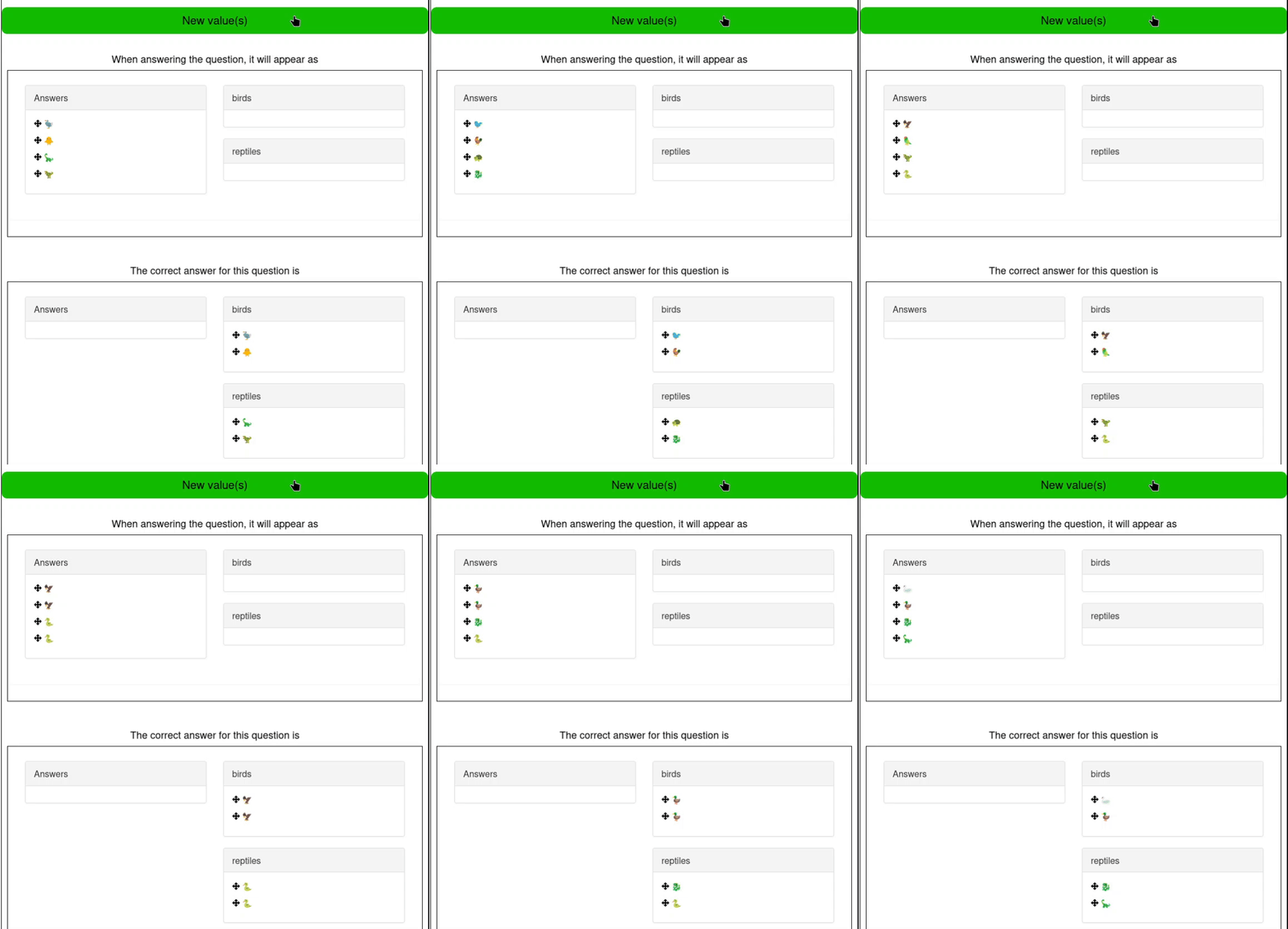
Cycling through different seeds shows that it's possible for both answers in a category to show the same emoji. The question can be updated to make it so that the two are always different.
In R subsetting by a negative index will select all of the indices other than the positive value of that index. This can be used to remove an emoji that is already picked by one answer so that the second answer cannot be the same.
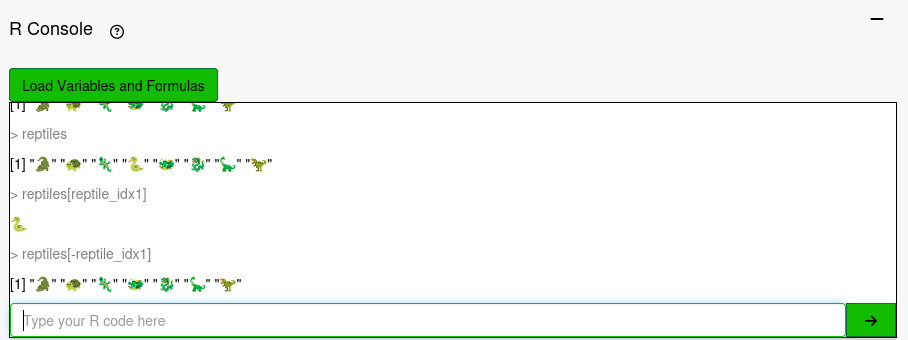
We can see in the R console that reptiles[reptile_idx1] will select the snake emoji, and reptiles[-reptile_idx1] will select every emoji other than the snake emoji.
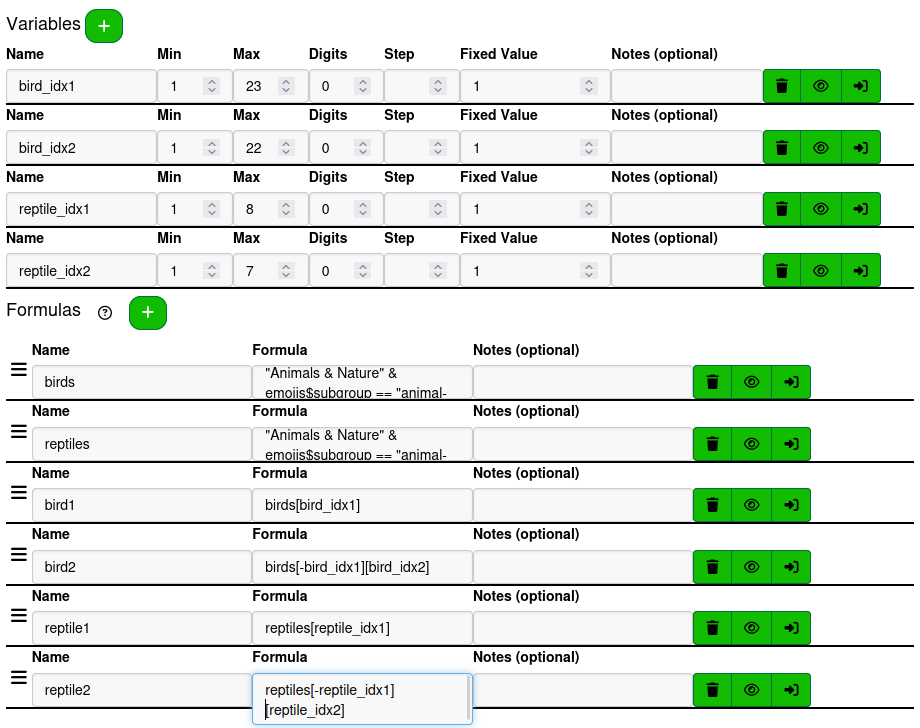
Decrease the maximum value of the variables for the second answer of each group by 1, so that there are not any errors coming from selecting an index that is out of range.
After that, update the second bird and reptile formulas to exclude the first index and then select the second index.
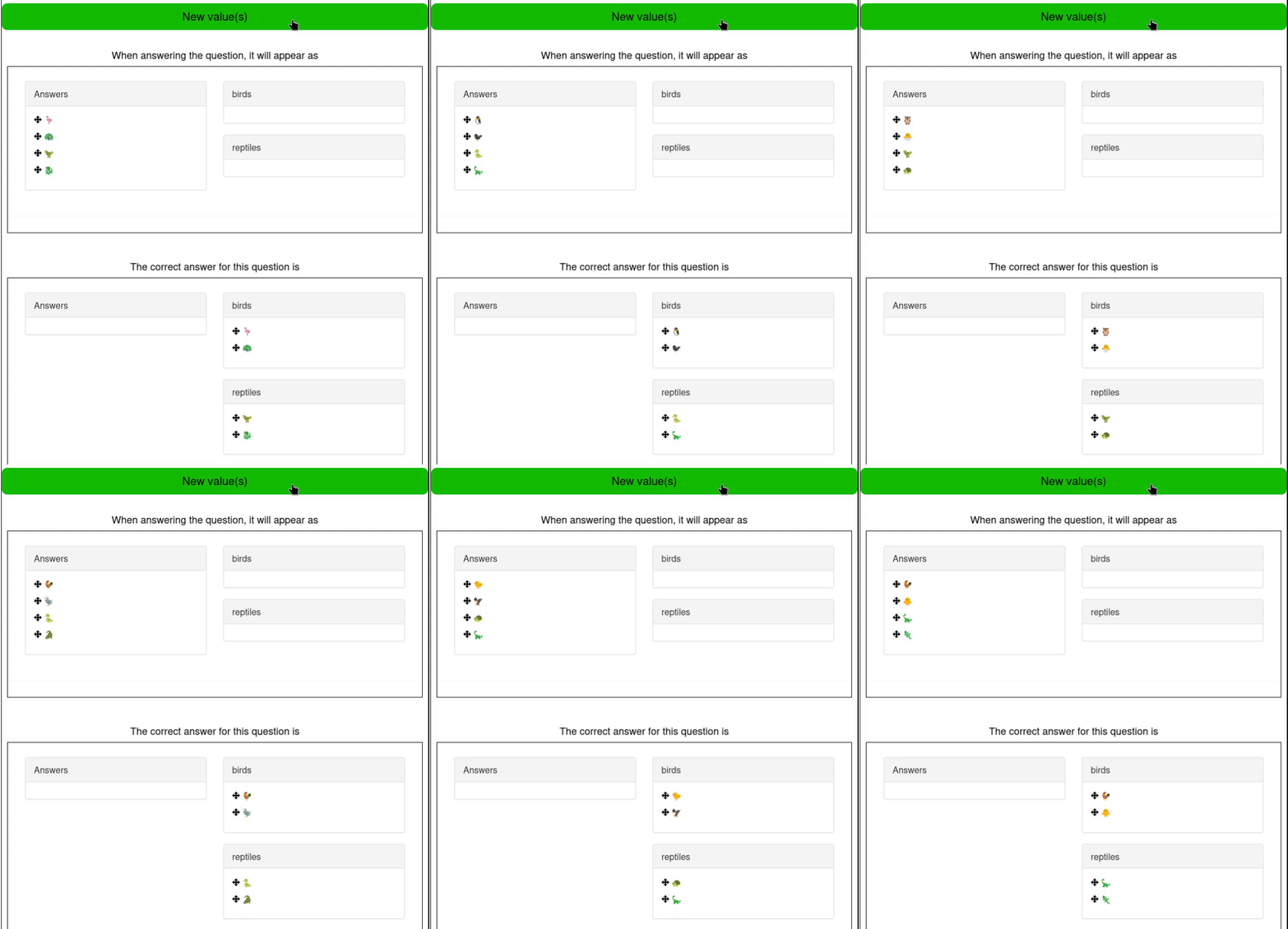
With this adjustment to the formulas, the answers no longer display duplicates of randomly selected emojis.
¶ Creating a grid of emojis
This example covers pasting emojis together to visually repesent a simple multiplication question.
Create a new Fill In The Blanks question
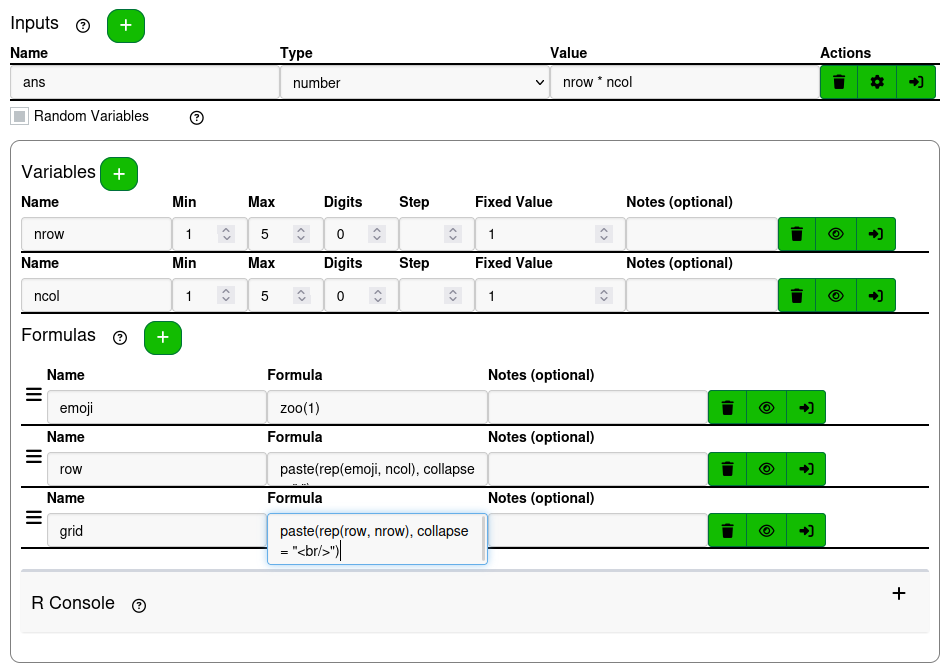
Create a variable for the number of rows the grid will have nrow and a variable for the number of columns ncol.
Create a formula for the emoji that's going to be used to create the grid. Sampling from the emojis table like in the previous example can work, but there are also functions from the package to generate emojis such as flag, shape, and zoo. Emojis can also be entered as strings. "🐿️" is an example of a valid formula. This example will use zoo(1) to randomly select one animal.
To keep the code for making the grid short, it will be split into 2 formulas. These formulas use the rep function to create multiple copies of the emoji and then paste to arrange them into a single string. The first formula row is defined with paste(rep(emoji, ncol), collapse = " "). The result of rep is a vector, so the collapse argument is used to combine all of the elements of the vector with a space between them. The second formula grid is defined with paste(rep(row, nrow), collapse = "<br/>"). Tinymce input values are html, so line break tags can be used to ensure that there are line breaks in the result of this formula. This only works for substituting variables in the tinymce inputs for the Question, Hint, and Solution of a question.
Create a numeric input for the answer with the value nrow * ncol. The answer for numeric inputs is treated as a formula.
Inputs are substituted exclusively into the question input with the substitution syntax @{…}. To keep the question short and simple, this example used the question text
!{grid}
There are @{ans} animals