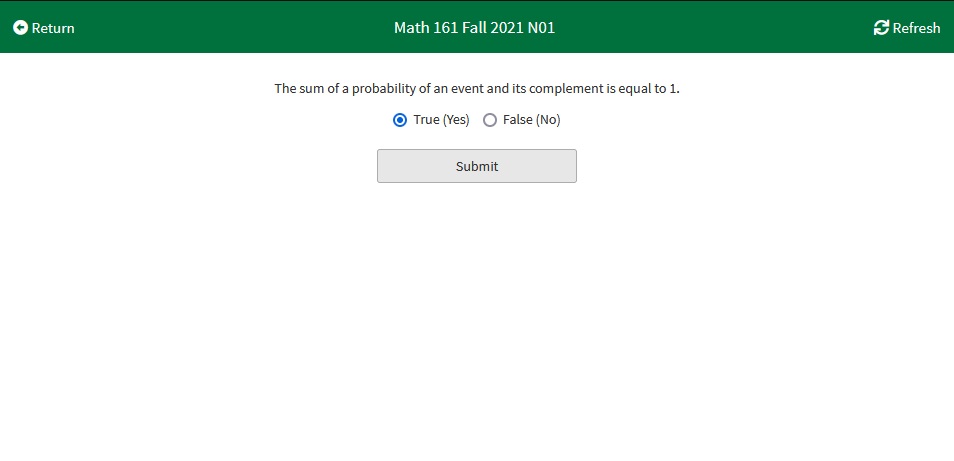
This tutorial will cover the workflow for running an in class exercise for professors, and for participating in in class exercises for students.
¶ Running an In Class Exercise
¶ Activating the Exercise
There are multiple ways to activate an exercise
¶ From the Dashboard
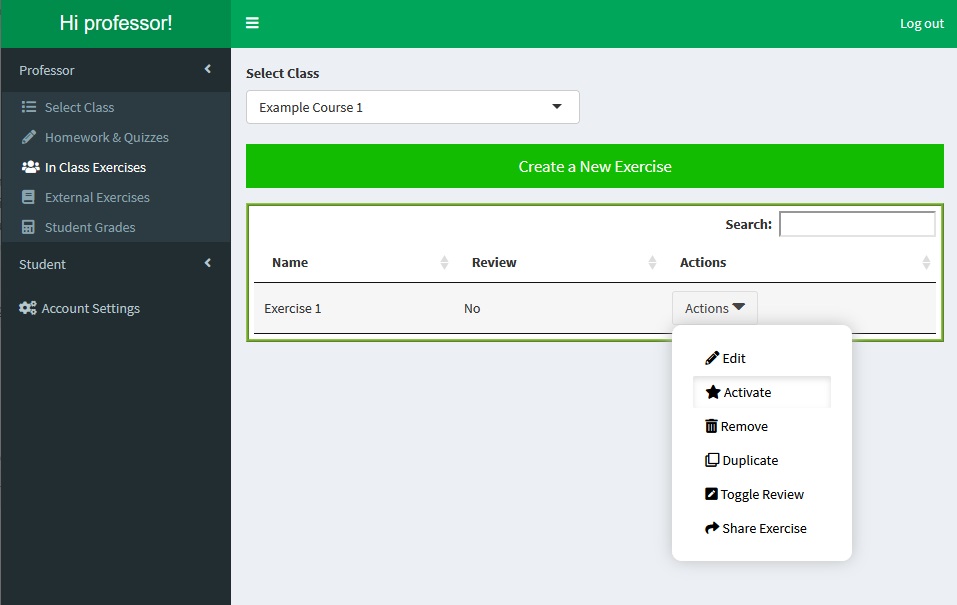
From the Dashboard, an exercise can be activated by navigating to the In Class Exercises tab and selecting the Activate action.
¶ From the Edit Page
From the Edit page, an exercise can be activate by clicking the Activate Exercise button or by clicking an Activate Question button in the actions section of the questions table to activate that question directly.
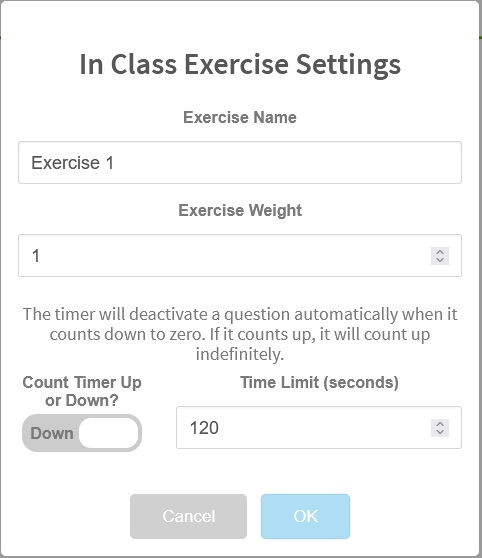
Before activating the exercise, the settings can be changed by clicking Settings → More Settings to open the In Class Exercise Settings Alert.
From here, the name and weight can be changed, and the timer can be set to count up or down.
¶ By embedding a url
EduRITA uses routing and url queries to determine what page the user is on, and what exercise they are interacting with. The Professor Exercise page encodes the active exercise, active question, and active question part in the url. So long as you make sure you are logged in, you can embed the url for your in class exercise in a web viewer, such as in a powerpoint presentation.
¶ Running the Exercise
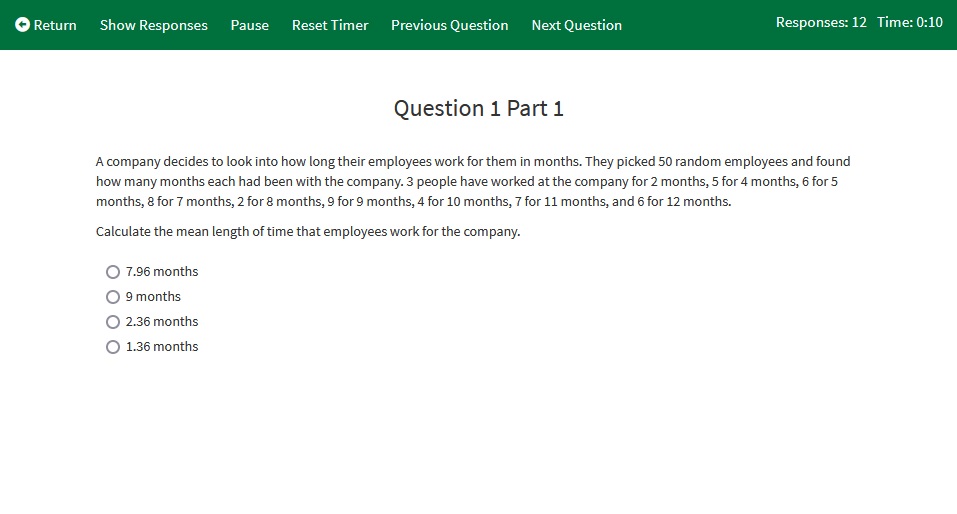
While a question is active, students are able to answer the question that is being presented in the page body. To change the question students can answer: press the Return button, and activate a different question; press the Previous Question button if the first question is not active; or press the Next Question button. Pressing the Next Question button when the last question of the exercise is active will deactivate the exercise, and show that the Exercise is complete in place of where the active question would be.
¶ Displaying the Answers
By clicking the Show Responses button, you can visualize the answers to the active question. They can be displayed in three ways:
¶ Bar Plot
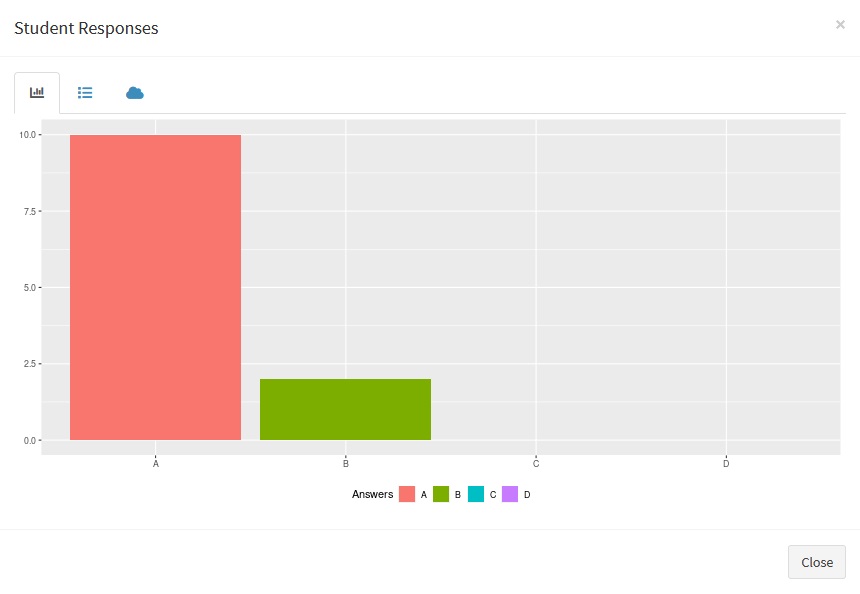
The bar plot shows all unique answers to the question in a bar with a height illustrating the frequency of the answer.
The bar plot's x axis is the answers in order. Answers can have an arbitrary length, and be difficult to read, so their order is put on the axis instead.
¶ List
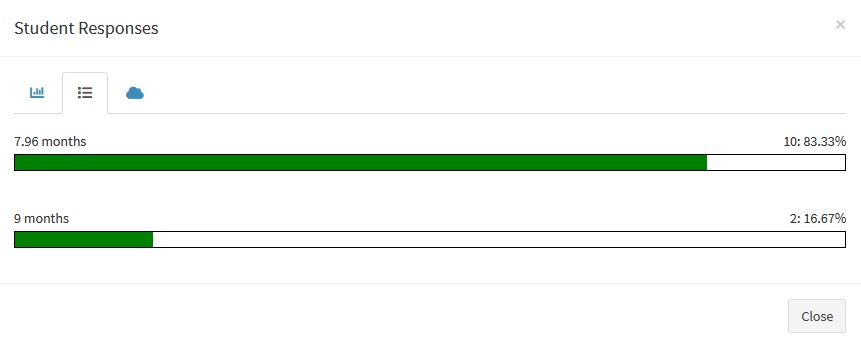
This shows all answers in a list, as well as what percentage of responses are the same as those answers.
¶ Word Cloud
This displays all of the answers in a word cloud. The size of a word increases with the number of answers include that word.
¶ Marking the Exercise
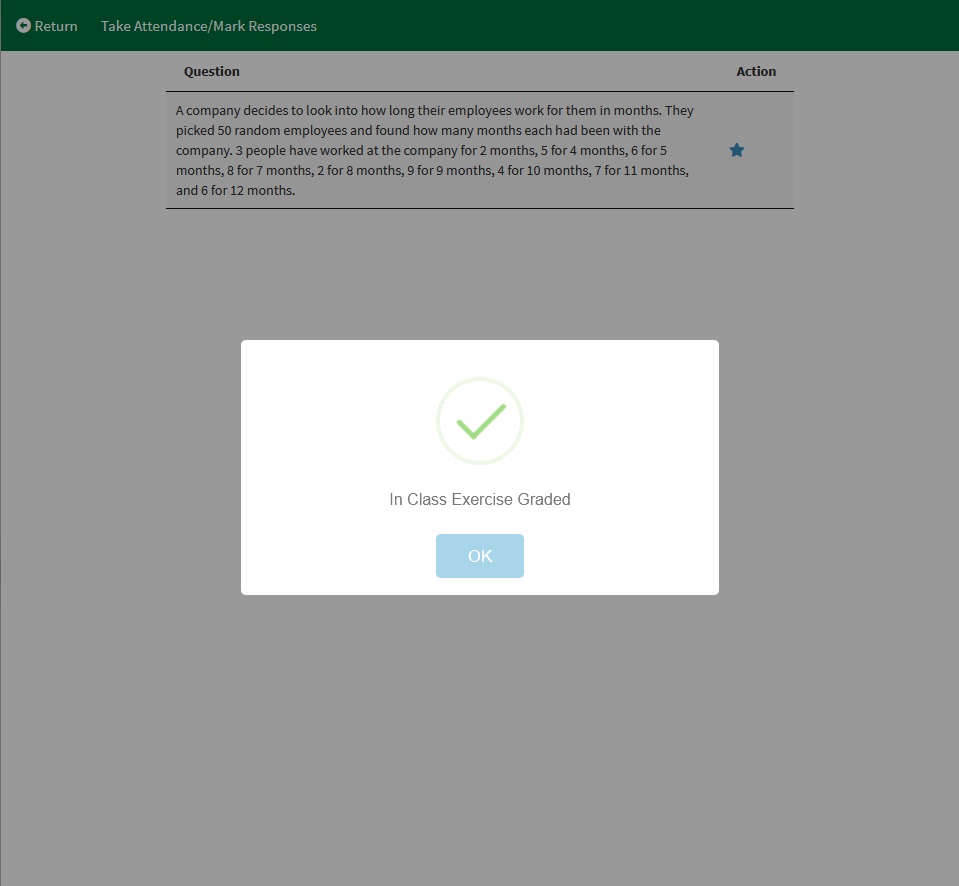
Once your In Class Exercise is complete, you can press Return to go back to the Exercise Select Question page. From there, press the Take Attendance/Mark Response button. This will take attendance for the exercise and mark all of the answers. If a student has given at least one answer, then they will be considered as having attended the class.
¶ Participating in an In Class Exercise
¶ Joining an Active Exercise
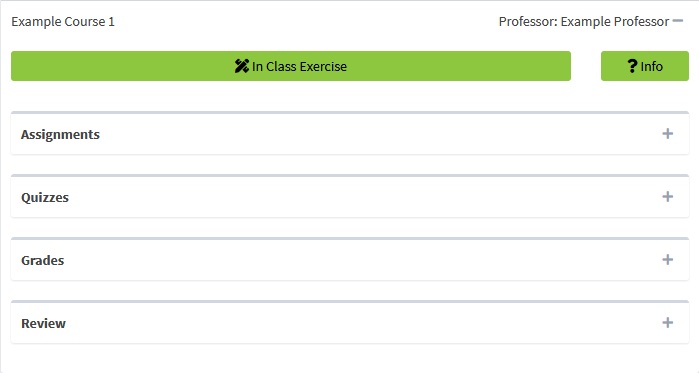
From the Dashboard, when an exercise and question has been activated by your professor. Navigate to the Classes tab, open the collapsible box for your course, and click the In Class Exercise button to go to the Exercise page.
¶ Answering Questions
The question that is visible in the professor's page is also visible in your page. You can answer the question as presented and then press Submit.
If you press Submit and the question has changed, EduRITA will inform you that it has now changed, and update your question.
If you see that the question has changed and you want to answer the one that is currently active, press the Refresh button in the top right.